
Typewise Custom Keyboard
TypewisePersonalization
3.31.57K Reviews
- Version
- 4.4.47
- Installs
- 1.00M
- Age Rating
- Everyone
Screenshots

Our Review of Typewise Custom Keyboard
 Analysis by Appyee
Ever felt like your typing could be a little less clumsy and a bit more intuitive? I recently stumbled upon the Typewise Custom Keyboard app, and let me tell you, it’s a game-changer. If you’re like me, constantly battling autocorrect fails and typos, this app might just become your new best friend.
The first-week appeal
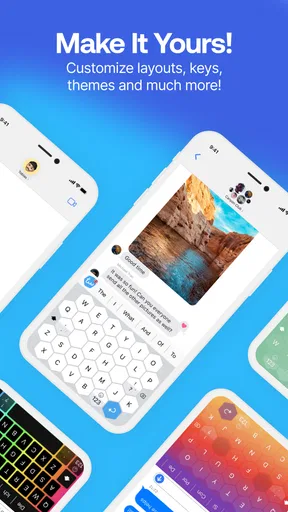
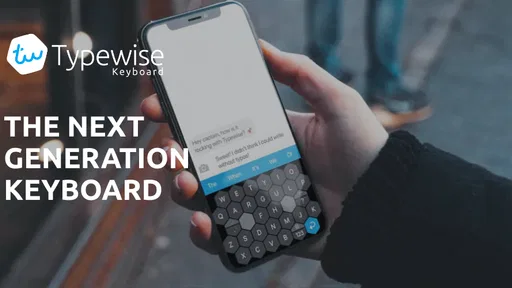
My first impression came from the shape of the keyboard rather than any dramatic feature list. The honeycomb layout looks unfamiliar beside the rectangular keys on the keyboards most of us already use, and that contrast is the point: larger keys give my thumbs more room to land. The change feels most promising on a phone held in both hands, where a cramped row of small keys can make quick replies surprisingly error-prone.
That first stretch is also when I’d make a fair decision about whether the layout suits me. I would not judge it from a single message; I’d use the tutorial and practice area, then try ordinary tasks such as replying to a friend, entering a search, and correcting a mistake. The payoff depends on building a new movement pattern. If you switch back and forth between keyboards every few minutes, that learning is harder to retain.
A practical tip is to start with low-stakes typing, not an urgent work message. When I’m still learning a keyboard, a typo in a casual chat is a useful cue; a rushed address or important note is just annoying. Once the key positions begin to feel familiar, I can decide whether the different layout is helping enough to keep using it.
Month-to-month value
The longer-term question is not whether a new keyboard feels interesting on day one, but whether it remains useful after the novelty wears off. I see the strongest case here for people who type frequently on a phone and want larger targets or more control over how autocorrect behaves. Personalization can help the keyboard feel less like a fixed tool, but it matters most when a setting solves a recurring irritation rather than simply looking different.
For example, if autocorrect repeatedly changes a name or a familiar expression, tuning its behavior may save small corrections across many conversations. That benefit is cumulative, not flashy. I’d adjust one thing at a time and live with it for a few days; changing the layout, colors, feedback, and correction behavior all at once makes it difficult to tell which change actually improved the experience.
Typewise is a free personalization app from Typewise, with optional in-app purchases ranging from $1.99 to $24.99 per item. It has an average rating of 3.1 from around 15,000 ratings, alongside about 1,500 written reviews and over 1 million installs. I take that mixed rating as a reason to approach it as a particular typing style, not a universal upgrade: the honeycomb design asks users to adapt, and not everyone will find that trade worthwhile.
For comparison, a conventional keyboard is the easier choice when muscle memory and familiar key placement matter more than a new layout. A standard keyboard may also suit someone who changes devices often or needs to type quickly without a settling-in period. Typewise makes more sense when I’m willing to practice in exchange for larger keys and a more personal setup. Neither approach wins for every user; the better option is the one that keeps everyday typing comfortable.
Maintenance and small habits
Keeping a custom keyboard useful does not need to become a project. I’d check the settings only when a real annoyance appears: a correction I keep undoing, feedback that distracts me, or a layout choice that makes a commonly used key harder to reach. A few deliberate adjustments are more useful than repeatedly changing the appearance in search of a perfect setup.
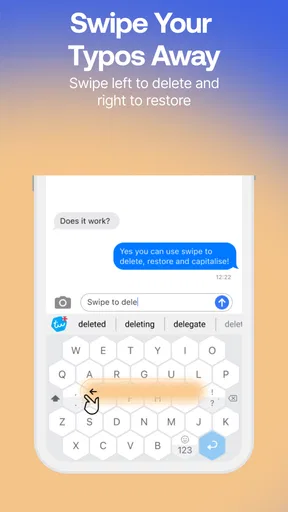
Gestures can also become part of the routine, but I’d learn them individually. A swipe to delete a word is useful when I’ve mistyped a whole chunk; it is less helpful if I trigger it accidentally while trying to select or correct text. Practicing that action in a draft or casual chat gives me a chance to learn its feel before depending on it in a time-sensitive message.
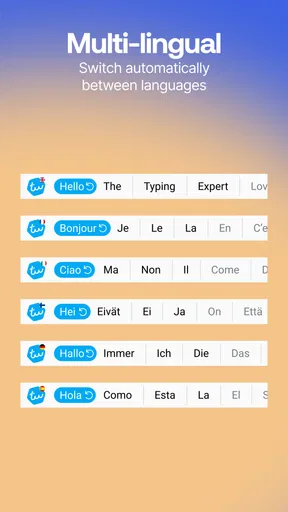
Language support can matter just as much as layout for people who move between languages. The app supports over 40 languages, so it may suit multilingual typing, but I would test the languages and correction behavior I actually use rather than assume every combination feels identical. If my routine involves frequent language changes, the time saved by a comfortable switching workflow matters more than the total number of supported languages.
Where fatigue can set in
The same design that makes the keyboard distinctive can become tiring if the new key positions never settle into muscle memory. People who type one-handed, rely on very fast predictive typing, or need a familiar layout for accessibility reasons should try it cautiously. Larger keys may help with aiming, but that alone does not guarantee that every gesture, symbol, or text-editing task will feel easier.
There is also a real trade-off between customization and consistency. A keyboard that changes often can feel unsettled, while an aggressive correction setting may interrupt typing instead of helping. I would keep a familiar alternative available during the trial period and avoid switching back and forth within a single conversation unless necessary. That makes it easier to learn the new layout and gives a clearer sense of whether it earns a permanent place.
For a realistic everyday test, imagine answering messages while walking between errands or typing a quick note before forgetting it. If larger targets reduce missed taps and the gestures make corrections quicker, the keyboard may be worth keeping. If I’m still hunting for keys or undoing corrections after several ordinary sessions, the conventional option is likely the less frustrating choice. The right answer depends on repeated use, not the first impression.
A Fresh Take on Typing
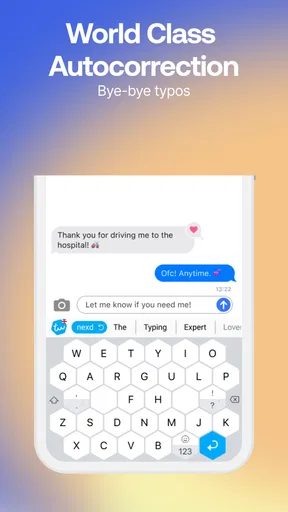
The first thing you’ll notice about the Typewise Custom Keyboard is its unique honeycomb layout. Skeptical? I was too at first. But after a few days of use, I found it surprisingly natural. This design claims to reduce typos by 80%, and honestly, it feels like it delivers on that promise. The keys are larger and easier to hit, which means less frustration and more accuracy.
Customization Galore
One of the app’s standout features is its customization options. Whether you want to tweak the layout, change the color scheme, or adjust the vibration feedback, Typewise lets you do it all. It’s like having a keyboard that truly feels like your own. Plus, the autocorrect is fully customizable, which means you can finally stop it from changing "ducking" to... well, you know.
Privacy at Its Core
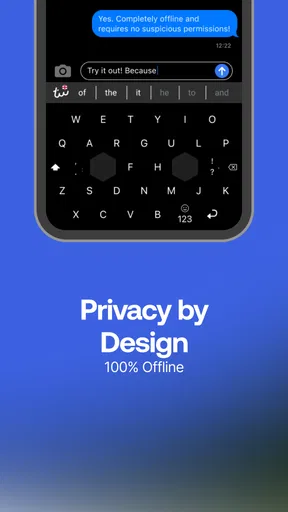
In an age where privacy is paramount, Typewise takes this concern seriously. The app doesn’t require suspicious permissions or internet access, so your data stays on your device. This is a huge relief for anyone wary of their data being sent to who-knows-where. It’s refreshing to use a keyboard that prioritizes user privacy without compromising on functionality.
Learning Curve
I won’t sugarcoat it—there is a bit of a learning curve. The honeycomb layout isn’t what most of us are used to, and it might take a few days to get fully comfortable. But the app includes a handy tutorial and practice area to help you get the hang of things. Trust me, a little patience goes a long way, and the payoff is worth it.
Going Beyond Typing
Typewise isn’t just about typing. It also offers swipe gestures for quick actions, like deleting a word or switching to numbers and symbols. These gestures soon become second nature and make typing even more efficient. Plus, the app supports over 40 languages, so you’re covered no matter where you’re from.
Final Thoughts
Wrapping up, the Typewise Custom Keyboard is a fantastic option for those looking to improve their typing experience. It’s innovative, private, and endlessly customizable. While the initial adjustment period might be a hurdle, the benefits vastly outweigh any temporary discomfort. If you’re ready to type smarter, give Typewise a shot. You might just wonder how you ever managed without it!
Who should keep it installed?
I’d recommend trying it if phone typing is a daily habit and missed taps or unwanted autocorrections regularly slow you down. It is also appealing if you enjoy shaping the look and feel of your keyboard instead of accepting the default. On the other hand, someone who is already happy with a familiar keyboard, rarely types on a phone, or cannot spare time to relearn key positions may get little lasting value from changing.
The app is free to try and rated for Everyone. It requires Android 6.0 or later, and the current version is 4.4.42. Those details make it straightforward to check basic compatibility before switching, while the optional purchases are worth considering only if a paid feature genuinely addresses a need. I would not pay just to keep experimenting with visual changes; first see whether the core layout and daily typing feel right.
My long-term verdict is that Typewise earns its space when its distinctive layout solves a repeated problem and its customization stays set-and-forget. The best sign is not that I enjoy exploring the settings, but that I stop thinking about the keyboard while typing. If that happens, the practice has turned into a useful habit. If the layout continues to demand attention, returning to a familiar keyboard is a sensible choice, not a failure.
Verdict
Strengths of Typewise Custom Keyboard
- Enhances typing speed with intuitive layout.
- Supports multilingual typing seamlessly.
- Highly customizable keyboard themes.
- Offline mode ensures privacy and security.
- Smart autocorrect reduces typos significantly.
Limitations of Typewise Custom Keyboard
- May have a learning curve for new users.
- Limited emoji options compared to standard keyboards.
- Some features require in-app purchases.
- Occasional lag on older devices.
- Voice typing feature can be inconsistent.
Similar Picks in This Category
View All
Microsoft SwiftKey AI Keyboard
SwiftKey4.3

Wallpapers
Google LLC4.1

Zedge™ Wallpapers & Ringtones
Zedge4.7

Yandex Browser with Alice AI
Direct Cursus Computer Systems Trading LLC4.3

Ringtone Maker:create ringtone
Big Bang Inc.4.7

Fonts Keyboard
Fonts Keyboard3.9
Frequently Asked Questions
What is Typewise Custom Keyboard and how does it work?
Typewise Custom Keyboard is a smartphone application designed to enhance typing efficiency and accuracy. It uses a unique honeycomb layout to reduce typos and improve speed. The app also offers advanced autocorrect features and customization options, making it adaptable to individual typing styles.
Is Typewise Custom Keyboard available for both Android and iOS?
Yes, Typewise Custom Keyboard is available for both Android and iOS devices. You can download it from the Google Play Store for Android or the Apple App Store for iOS. The app is regularly updated to ensure compatibility and performance improvements across both platforms.
Does Typewise Custom Keyboard support multiple languages?
Typewise Custom Keyboard supports over 40 languages, making it suitable for a global user base. Users can easily switch between languages, and the app provides autocorrect and predictive text features in each supported language to enhance typing accuracy and speed.
What customization options does Typewise offer?
Typewise Custom Keyboard allows users to personalize their typing experience with various customization options. You can adjust the keyboard layout, choose from different themes, and modify key sizes. Additionally, users can enable or disable features like autocorrect, vibration feedback, and more, tailoring the app to their preferences.
Is Typewise Custom Keyboard secure to use?
Typewise Custom Keyboard prioritizes user privacy and security. The app operates without requiring full access to your device, ensuring that your data stays private. It does not request unnecessary permissions, and sensitive data such as passwords are not stored or accessed by the app, providing a secure typing experience.
